Why dual monitors break pair programming flow
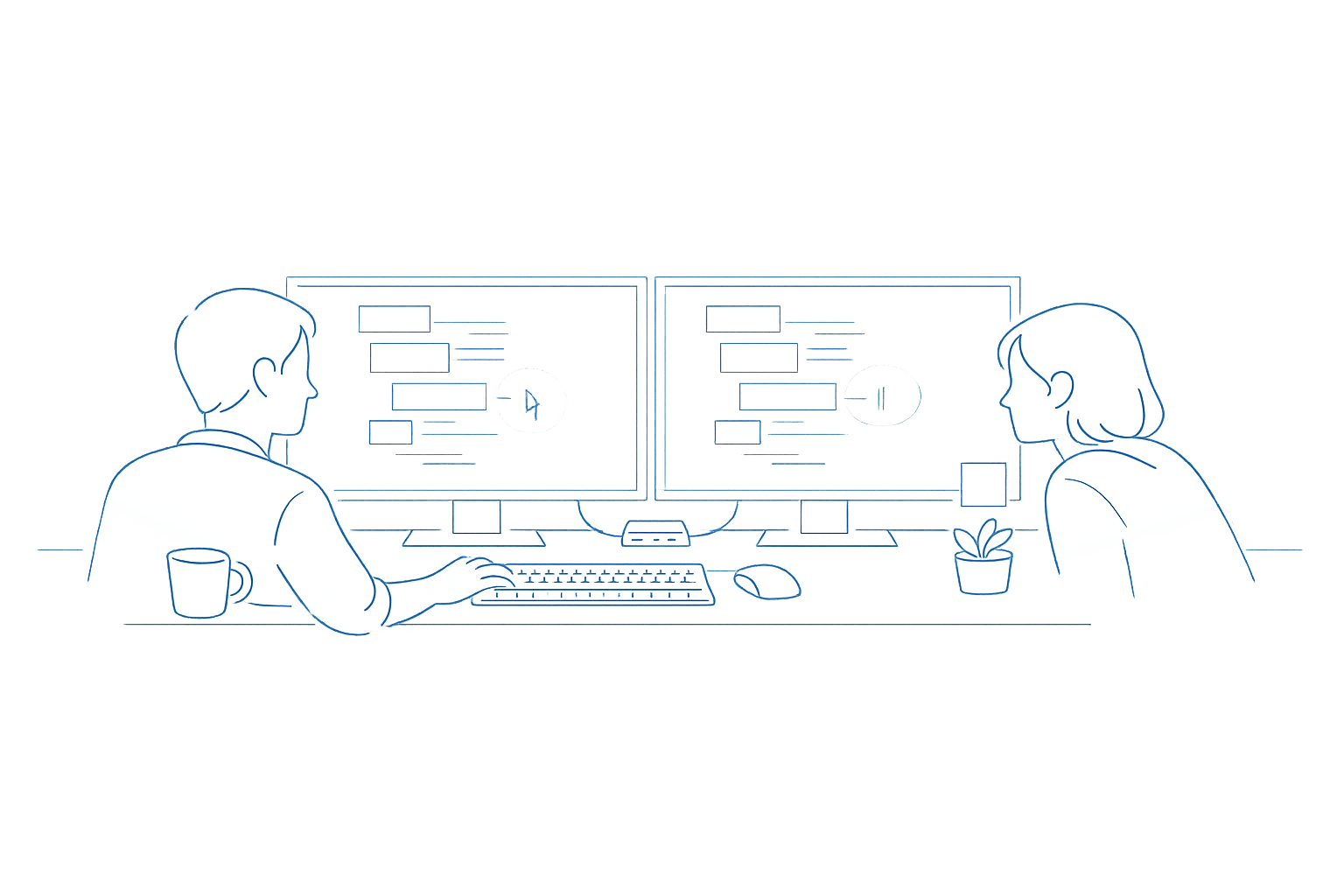
Dual monitors are great for solo work: code on one screen, docs and tickets on the other. In pair programming—especially remote pairing—those same screens can create constant micro-friction. The main culprit isn’t “too much screen real estate.” It’s losing cursor context: the observer can’t reliably tell which display is “active,” where focus moved, or why the driver’s keyboard input suddenly affects a different window than expected.
This is where a window-pinning and focus-handshake protocol helps. Think of it as lightweight operational discipline: you deliberately constrain where things live (pinning), and you explicitly signal when focus changes (handshake). Done well, it removes the “wait, which monitor are you on?” interruptions without making the session feel rigid.
The window-pinning layer: make the workspace predictable
Window pinning isn’t about never moving windows. It’s about reducing surprises. You’re designing a stable layout so both people can build a shared mental map quickly, then keep it consistent for most of the session.
1) Declare monitor roles
Start every session with a 10-second declaration:
- Left monitor = “Primary code surface” (editor, tests, debugger)
- Right monitor = “Reference surface” (browser docs, issue tracker, logs, Slack)
If you prefer the opposite, that’s fine—the point is that you name the roles and stick to them. Once you do, the observer can follow your narration (“I’m staying on the code surface”) and interpret cursor movement correctly.
2) Pin the “always-on” windows
Choose a small set of windows that rarely move during pairing:
- Your editor/IDE
- Terminal (either embedded in the IDE or as a separate window)
- Browser (docs, PR, ticket)
- Video/pairing app controls (kept out of the way)
Then use your OS window management to keep them stable: fullscreen on macOS Spaces, Windows Snap layouts, or tiling if you use a window manager. The observer doesn’t need to know your exact tooling; they just need consistency in where things appear.
3) Reserve “scratch space” and keep it bounded
Some pairing moments are inherently messy: quick repro steps, temporary logs, a one-off grep. Instead of letting those temporary windows sprawl across both monitors, reserve a bounded scratch zone—e.g., the bottom half of the reference monitor or a dedicated desktop/Space. The rule is simple: temporary windows may appear, but only in the scratch zone.
4) Control notification spillover
Cursor context gets lost fast when notifications steal focus or cover key UI. Before you start, decide what happens with sensitive apps and popups. If you’re pairing remotely, tools that let the host hide sensitive applications and notifications are especially helpful. Tuple’s App Veil is designed for this exact friction point, so the layout stays stable and the observer isn’t distracted by focus-stealing overlays while you share your screen via tuple.app.
The focus-handshake layer: narrate focus changes explicitly
Even with pinning, focus will move. The handshake protocol is how you prevent “silent” focus changes from becoming confusion. It’s deliberately small: a short spoken cue, a brief visual confirmation, and (optionally) a role swap when it matters.
1) Use a standard focus callout
Pick one phrase and reuse it consistently. For example:
- “Switching focus to the reference monitor.”
- “Back to the code surface.”
- “I’m in the terminal now.”
This sounds trivial, but it prevents the observer from having to infer focus from tiny cursor movements or window highlights—especially on high-resolution displays scaled down in screen sharing.
2) Confirm the target window before typing
Most context loss happens when the driver starts typing immediately after an app switch. Make it a habit to pause for half a beat and confirm aloud:
- “Cursor is in the editor.”
- “Command line is active.”
This is the handshake: you announce the focus, and the observer has a moment to say “yep” or “wait—looks like your terminal isn’t active.”
3) Use micro-annotations instead of long explanations
When focus changes are frequent (debugging UI, stepping through logs), it’s more efficient to point than to explain. Lightweight annotations—circling a panel, underlining a value, or briefly highlighting a region—keep both people aligned. Tuple includes screen annotations that work well as “cursor context anchors,” so the observer knows exactly which area you mean without taking over the conversation.
4) Treat remote control as a negotiated focus change
Remote control is powerful, but it can increase context loss if it’s used abruptly. Make it part of the handshake protocol:
- Observer: “Want me to take control to refactor this function?”
- Driver: “Yes—taking hands off keyboard. You’re on the code surface.”
- Observer: “Got it. Cursor is in the editor.”
When your pairing tool has low-latency remote control, the handoff feels natural instead of jarring. The goal isn’t to reduce control usage; it’s to make every control transfer explicit so nobody wonders why focus moved.
A practical dual-monitor pairing protocol you can adopt today
Here’s a simple protocol you can copy into your team’s pairing checklist. It’s short enough to use consistently, and strict enough to stop the most common monitor-related breakdowns.
Step 1: Set roles and layout (30 seconds)
- Define monitor roles: code surface vs reference surface.
- Place editor and terminal on the code surface.
- Place browser/tickets/docs on the reference surface.
- Declare the scratch zone for temporary windows.

Step 2: Agree on the handshake phrase (10 seconds)
Pick one phrasing for focus changes. Consistency beats cleverness.
Step 3: Drive with focus callouts (continuous)
- Call out every monitor switch.
- Confirm target window before typing.
- Use a quick annotation when pointing at UI details.
Step 4: Use role swapping to resolve ambiguity (as needed)
If you notice repeated “Where are you?” moments, swap roles temporarily. A quick role swap can be faster than narrating through a complex UI state. Pairing tools that support one-click role switching reduce the overhead here, keeping collaboration fluid instead of procedural.
Common failure modes and how to prevent them
Failure mode: “I’m watching the wrong monitor”
Fix: Re-state the monitor roles and do a deliberate focus callout. If you’re about to do a multi-step action, add a 2-second preview: “Staying on the reference surface for three quick checks, then back to code.”
Failure mode: Typing goes to the wrong window
Fix: Add the confirmation pause. If it keeps happening, reduce the number of visible inputs (fewer terminals/editors) and keep only one “active typing” surface on the code monitor.
Failure mode: Frequent context switching during debugging
Fix: Move logs into a predictable panel (split view, dedicated terminal) rather than bouncing between apps. Use annotations to mark the relevant region instead of verbally re-orienting every time.
Failure mode: Notifications steal attention and focus
Fix: Turn on Focus modes / Do Not Disturb, and use a sharing setup that hides sensitive apps and notifications so the shared view stays stable.
If you want to extend this discipline beyond pairing sessions, it can help to standardize how your team documents collaboration practices. For example, the same “determinism” mindset applies when you want repeatable outputs across tools—similar to how you’d approach testing citation determinism across AI models to stabilize outcomes in a different domain.
And if your team sometimes pairs in larger groups, adding explicit observer norms can prevent side conversations from derailing focus changes. The mechanics are different, but the same principle applies: shared context beats implicit assumptions, as discussed in this observer mode pairing playbook.